Speak,don’ttype.
Record.
One click on the microphone or your keyboard shortcut – from any app. The level meter shows right away that sound is coming in.
Screenshot.
Click the camera while you speak: the screen is saved as a screenshot in Downloads/Soliloquium – without the pointer, without the panel. As often as you like.
Stop.
Stop – and the recording is transcribed: on your Mac with Apple’s model, or with OpenAI. If you choose, the text is then translated into your target language on your Mac.
Paste.
Text and screenshot paths are already on the clipboard: ⌘V into Claude Code, Terminal or Notes. Chat and Mail get the pictures with a click on the picture symbol.
Show what you’re talking about.
One click on the camera.
The display under the pointer is saved as a PNG in Downloads/Soliloquium – without the pointer, without the panel. The shutter clicks, and a picture is counted after “Recording”. As often as you like.
The paths sit under the text.
After transcription, “Screenshot context:” with the file paths is attached under the text on the clipboard. One ⌘V, and anything that reads paths sees what you were talking about.
Or the pictures themselves.
Apps that can’t open paths get the screenshots with a click on the picture symbol after “Done”: it puts them on the clipboard as files, and ⌘V attaches them. The copy button brings the text back at any time.
“The spacing between the buttons still isn’t right.”
Your voice.
Many languages.
Speak in your language. Your dictation is translated into the language you choose, ready on your clipboard. Paste with ⌘V, right where you write.
Choose a target language in settings. The flag in the panel shows which language you’ll get. Click the flag to keep your dictation in the language you speak.
Locally on your Mac with Apple · macOS 26.4 or later. Works offline once the language packs are downloaded. No API key, no extra cost for translation.
Nothing leaves your Mac. Unless you want it to.
Free, offline, from macOS 26.
Apple’s SpeechAnalyzer – the same model as in Notes and Voice Memos – runs right on your Mac. No API key, no internet. The recording stays here.
The most accurate model, with your key.
For the best recognition, Soliloquium sends the recording to OpenAI for transcription with your own API key and deletes it afterwards. About half a cent per minute, billed to your OpenAI account.
If OpenAI takes too long, Apple steps in.
On macOS 26, Apple transcribes in parallel as soon as OpenAI doesn’t answer – the first result wins. The panel then says “Done · Apple on-device”.
Small, fast, no frills.
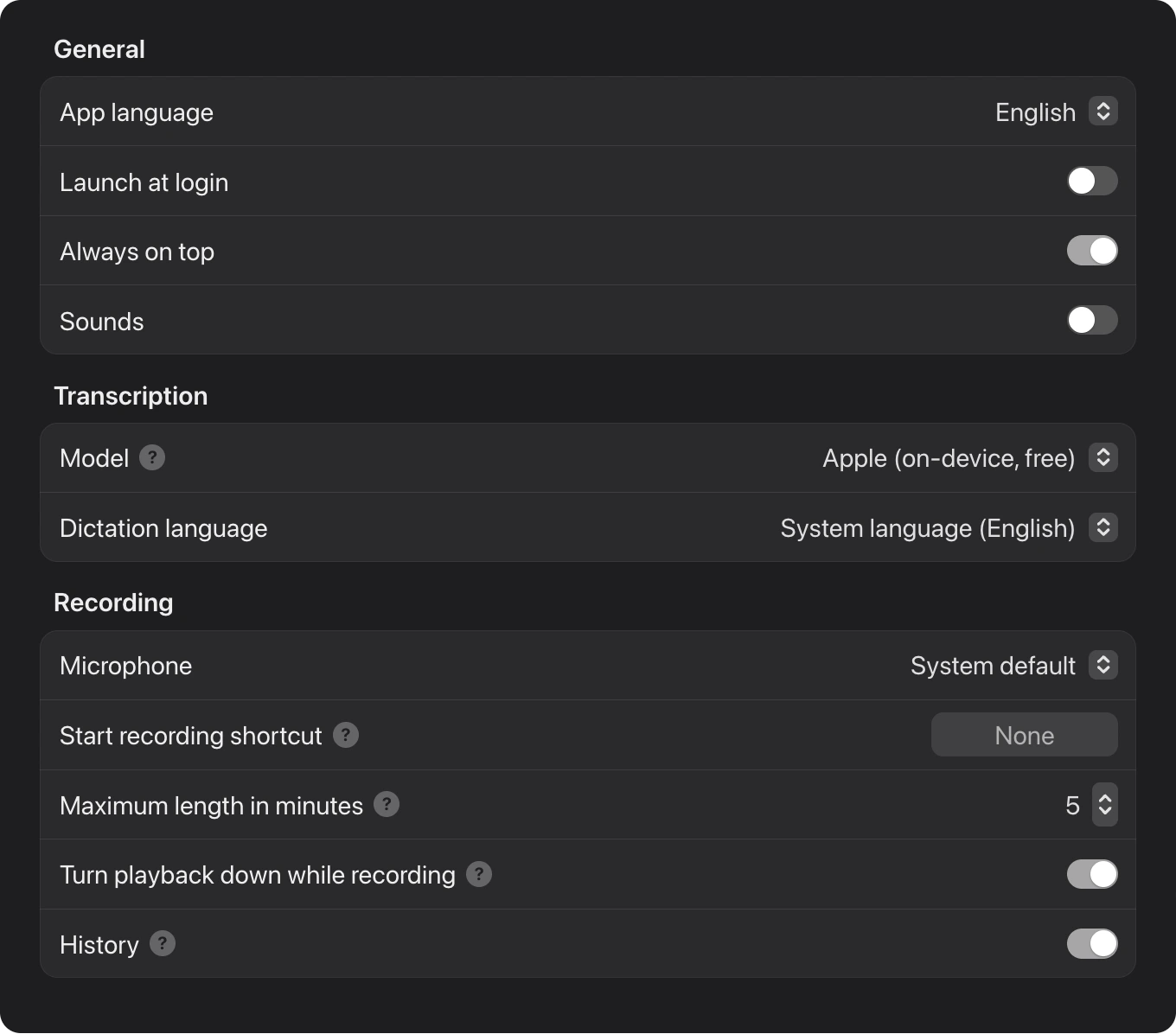
Always on top
The panel floats above every app, right where you drag it. No window switching, no searching – and it can be turned off if it ever gets in the way.
Screenshots
Click the camera while you speak: the screen is saved as a PNG in Downloads/Soliloquium – without the pointer, without the panel.
Apple on-device or OpenAI
From macOS 26, Apple’s model transcribes offline and for free on your Mac. It gets more accurate with your OpenAI key: about half a cent per minute.
Nothing gets lost
If the network stalls, the recording is kept. One click on the arrow sends it again – even after restarting the app.
Start at login
If you like, Soliloquium starts with your Mac. The panel is there before you need it; it can be turned off in System Settings.
Native and small
Swift, AppKit and SwiftUI, built for the Mac: a few megabytes that launch instantly. No Electron, no account, no subscription.
Buy once. No subscription, no account, no tracking.
Questions, bugs, wishes?
We usually reply within a few days. What the app does with your data is in the privacy policy.
How do I translate my dictation?
On macOS 26.4 or later, enable translation and choose a target language under “Translate” in settings. Soliloquium translates the finished text locally with Apple before placing it on your clipboard. Any required language packs are downloaded once; after that, it works offline. Translation needs no API key and costs nothing extra, even if you use OpenAI for transcription.
Can I keep a dictation in my own language?
Yes. Click the arrow or target flag in the panel before stopping. Without a flag, the text stays in the language you speak. Click “Soliloquium” to turn translation back on while no recording is running. If translation fails, the complete original text is kept.
Do I need an OpenAI key?
No. From macOS 26, Apple’s model transcribes right on your Mac, free and offline. The OpenAI key is only needed for GPT Transcribe and costs about half a cent per minute of recording, billed to your OpenAI account.
Which Macs does Soliloquium run on?
macOS 13 (Ventura) or later. Apple’s on-device model needs macOS 26; on older systems you need an OpenAI key.
Can I record from within other apps?
Yes. Set a keyboard shortcut in the settings (with ⌘, ⌃, ⌥ or an F key). It starts and stops the recording even when Soliloquium isn’t in front. A hidden panel reappears when you use it.
All I get is “you” or “Thank you.”
The recording was silent, usually because a virtual input device is the system default (such as RØDE Unify, Wave Link or Loopback). Pick a real microphone in the settings; the level meter in the panel shows right away whether sound is coming in.
How does a screenshot get into the text?
Click the camera in the panel while recording – as often as you like. The display under the pointer is saved as a PNG in Downloads/Soliloquium, without the pointer and without the panel. After transcription, the paths sit under the text on the clipboard (“Screenshot context:”). Apps that can’t read paths – Claude, Slack, Mail, Notes – get the pictures with a click on the picture symbol after “Done”: it puts them on the clipboard as files, and ⌘V attaches them.
Why does the app ask for screen recording?
Only for screenshots, and only on the first click on the camera. Without the permission, Soliloquium records sound only, as before. You can revoke it at any time under “Privacy & Security → Screen Recording”. Screenshots need macOS 14; the app deletes them after seven days on its own, and immediately when you discard a recording.
What happens if the network stalls?
The recording is kept. A click on the arrow (or Enter) sends it again – even after restarting the app. On macOS 26, Apple’s model also steps in when OpenAI takes too long.
Where does my data go?
With Apple, it stays on your Mac. With OpenAI, the audio leaves your Mac only for transcription and is deleted afterwards. Screenshots always stay on your Mac, in your Downloads folder – they are never sent along. No accounts, no servers of our own, no tracking – details in the privacy policy.